A separate home for confidential files
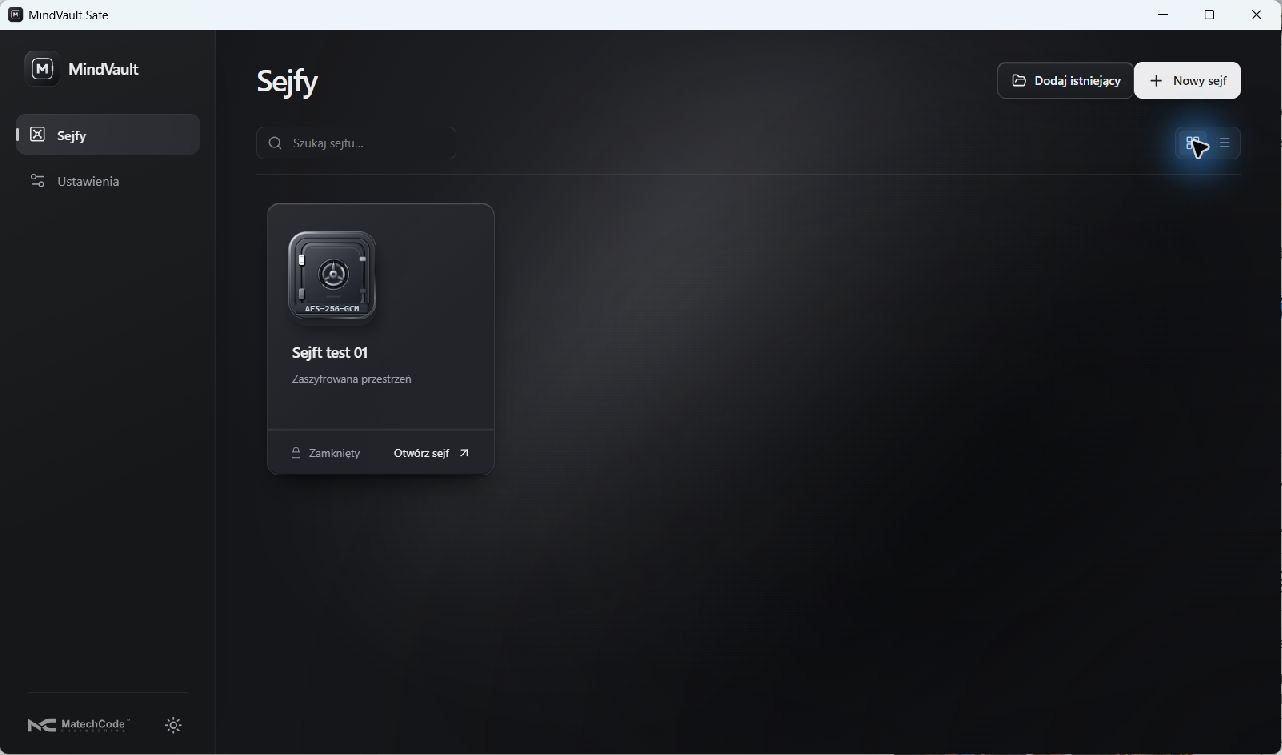
MindVault Safe is a Windows app for storing files in local encrypted vaults. Create a vault in a location you choose, give it a name and password, then add documents. You can also open an existing vault.
The core uses AES-256-GCM to encrypt data and Argon2id to derive a key from your password. Everyday work with a local vault does not require sending its contents to a MatechCode server.
Browse after unlocking
Choose a list or grid view, find files by name and path, and inspect the selected document’s details. Preview UTF-8 text files up to 1 MiB inside the app. Export other files to a location of your choice.
Closing a vault ends its unlocked session and removes the current file list and preview from the interface.
Clear actions for your files
Import adds a file to encrypted storage. File verification checks the vault’s contents. Export saves a decrypted copy as a new file outside the vault, after your confirmation.
An exported copy remains unencrypted after Safe closes. You choose where to save it and how to use it.
A backup and a separate recovery key
Choose a backup location, preferably on another drive. Safe creates and verifies a copy of encrypted storage. Once a location is configured, subsequent imports also trigger a backup. File-save and backup results are reported separately.
After creating a vault, you can save a separate recovery key. Recovery becomes active after the key has been saved and checked. Keep it apart from the vault and its backup. Recovery access lets you read and export your data.
Receive correspondence from Lettera
In private Windows tests, you can enable a Lettera connection for a specific vault and receive messages and attachments on the same computer. You choose the destination, and the apps show the transfer state. Access to the vault stays under your control.